Discord bot commands explained - how slash commands actually work
What slash commands are, how to use them, common patterns, and a tour of every category Jarvis ships with.
If you've used Discord for the last year or two, you've seen slash commands - type /, get a dropdown, fill in the fields, hit enter. They look simple, but there's more going on underneath, and a lot of bots use them inconsistently. This post explains what they are, how they work, and walks through every command category Jarvis uses as a concrete example.
What slash commands are
Slash commands are Discord's official way for bots to expose actions. Each bot registers a list of commands with Discord; the Discord client autocompletes them when you type /. The bot's server-side code receives the structured arguments and responds.
A few properties worth knowing:
- Discoverable. Type
/and you see everything available, with descriptions. - Typed arguments. Each argument has a type - string, integer, user, channel, attachment. Wrong types are rejected before they reach the bot.
- Permission-gated. Discord lets bots declare which permissions a command requires; the client hides commands the user can't run.
- Cached client-side. When you invite a new bot, its commands can take up to ten minutes to show up. Restart your Discord client if they don't.
Most modern bots use slash commands as the primary interface, with mentions (@BotName) and message-context menus as secondary triggers.
The three command styles
Bots use slash commands in one of three patterns:
Flat commands. /play, /skip, /ban. Each command does one thing. Argument list is flat. Easy to learn, can lead to dozens of commands.
Grouped commands. /memory entries, /memory clear, /profile show, /profile set. The first word is the group; the second is the subcommand. Keeps the command list short and organized.
Subcommand groups. /wakeword set, /wakeword server set, /wakeword server clear. Two levels of nesting. Used when a feature has both per-user and per-server modes.
Jarvis uses all three. Most bots do.
A tour of Jarvis's command categories
This is the conceptual version. The full command list is auto-generated from the live registry.
Chat & AI
The core interaction. Four ways to start a chat:
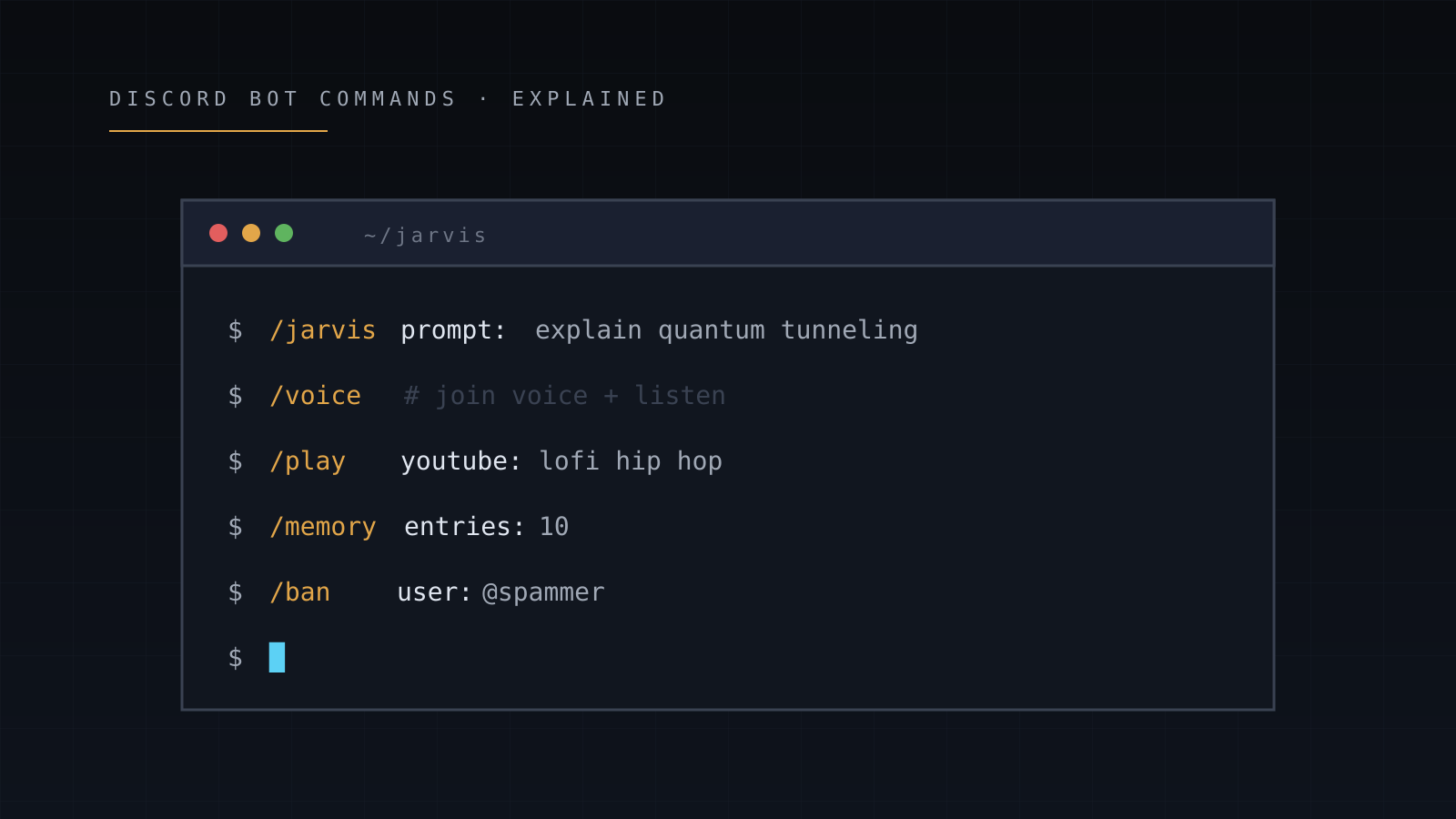
/jarvis prompt: explain monads
@Jarvis what time is it in Tokyo?
[reply to one of Jarvis's messages]
hey jarvis, what's the score?  // wake word
Companion commands:
/memory entries: 10- see what Jarvis remembers about you/clear- wipe your conversation history/opt mode: out- disable memory entirely/profile set key: pronouns value: they/them- set a preference
The wake word is jarvis or garmin by default. /wakeword set word: friday changes yours; /wakeword server set word: alexa changes the default for everyone in the server (mod-only).
Voice
Two commands, both context-aware:
/voice    // join your current voice channel + start listening
/leave    // disconnect
Voice replies use NVIDIA NIM. After /voice, Jarvis waits for the wake word, transcribes the speech that follows, generates a response, and speaks it back. Raw audio is never recorded - only post-wake-word transcripts.
Music
/play is the entry point. Three input modes:
/play youtube: lofi hip hop
/play soundcloud: https://soundcloud.com/...
/play file1: track.mp3 file2: another.mp3
Queue management:
/queue            // see what's playing and queued
/skip             // skip current
/skip position: 3 // skip to position 3
/loop mode: track // loop current track (or queue, off)
/pause / /resume
/nowplaying
/clearqueue
/stop             // stop and disconnect
DJ mode (restricts playback control to designated DJs or admins):
/dj toggle enabled: true
/dj user action: add target: @someone
Moderation
Standard toolkit. Every command checks the Discord permission it would require:
/purge count: 50              // bulk delete last 50 messages
/purge count: 50 user: @noisy // only that user's messages
/timeout user: @x duration: 1h
/untimeout user: @x
/ban user: @x reason: spam
/unban user_id: 1234...
/banlist
/kick user: @x
/warn add user: @x message: "first warning"
/blacklist add user: @x       // block from using bot
/role add role: @AI-Users     // gate bot access by role
/channel set channel: #ai     // lock bot to one channel
AutoMod sub-commands handle keyword filtering:
/automod enable
/automod add words: word1, word2
/automod list
/automod advanced import file: words.txt
Fun & utility
The small things:
/ship person1: @a person2: @b   // compatibility calc
/8ball question: should I deploy?
/caption text: "..." image: ...
/avatar user: @someone
/banner user: @someone
/news topic: tech
/yt query: search terms
Right-click any message to get two context-menu actions:
- Make it a Quote - generates a stylized quote image
- Clip Context - captures the surrounding conversation as an image
Server tools
Operational commands for admins:
/features toggle enabled: true   // enable/disable feature modules
/serverstats enable              // member-count channels
/memberlog                       // join/leave logging
/serverinfo
/userinfo
/remind                          // set a reminder
/timezone                        // set your timezone
How to learn a new bot's commands
Three habits that make this faster:
- Type
/in any channel. The dropdown shows everything a bot registered. Most bots have ten to fifty commands; scan the list before searching documentation. - Read the descriptions. Slash command descriptions are written by the bot author and visible inline. They're often more current than the bot's website.
- Try the help command. Most bots have
/helpor similar. Jarvis has/helpand/jarvis prompt: what can you do?.
What separates a good command surface from a bad one
A few signs of a well-designed bot:
- Grouped commands, not 80 flat ones.
/automod addis better than/automodadd. - Required arguments are obvious - they show up as the first parameters with no default.
- Permission gating is correct -
/banshould not show up to users without Ban Members. - Confirmation prompts on destructive actions -
/clearor/purgeshould be clear about what they'll do. - Error messages are useful - "you don't have permission" beats "command failed."
If a bot's command list violates these, that's usually a sign the rest is rough too.
Next steps
- Full command list - auto-generated from the live registry, with arguments and permission badges
- Commands reference (conceptual) - what each category is for, when to reach for it
- Getting started - if you haven't added Jarvis yet